Access Roles
Create roles of your own that decide, area by area, what a member may see and change.
An access role narrows or widens what someone with the Member role may do. You decide it area by area: risks, assets, vendors, policies and the other registers. A member who holds no access role keeps the standard Member access: they can view everything and change nothing but comments.
Access roles apply to the Member role only. Owners, admins, auditors, employees and external contacts are never affected. Only owners and admins see this page.
The tasks below follow the order of the work:
- Create an access role
- Give a member an access role
- Check what the member sees
- Change or delete an access role
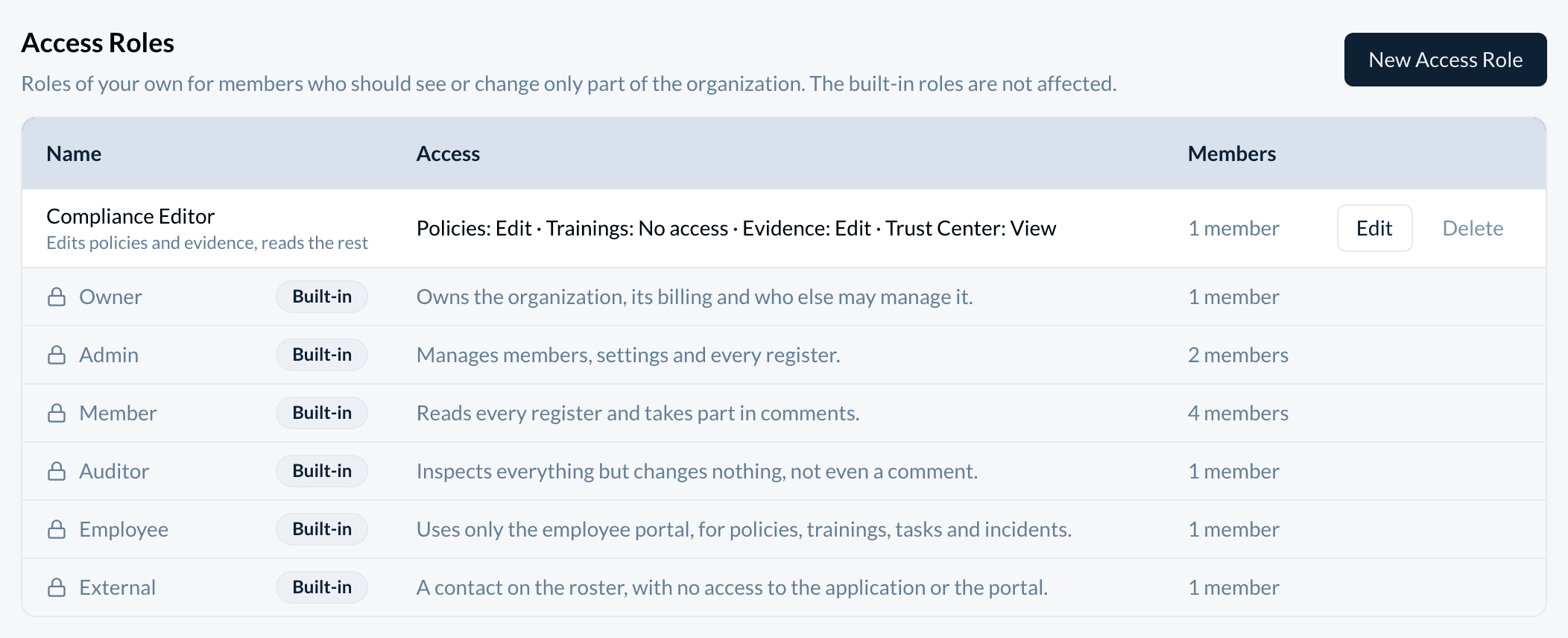
Create an access role
- Open Settings, then Access Roles, and choose New Access Role.
- Enter a Name and, if you like, a Description.
- Choose a level for each area. Set all to beside each section's title sets every area of that section at once, as a starting point.
- Choose Save.
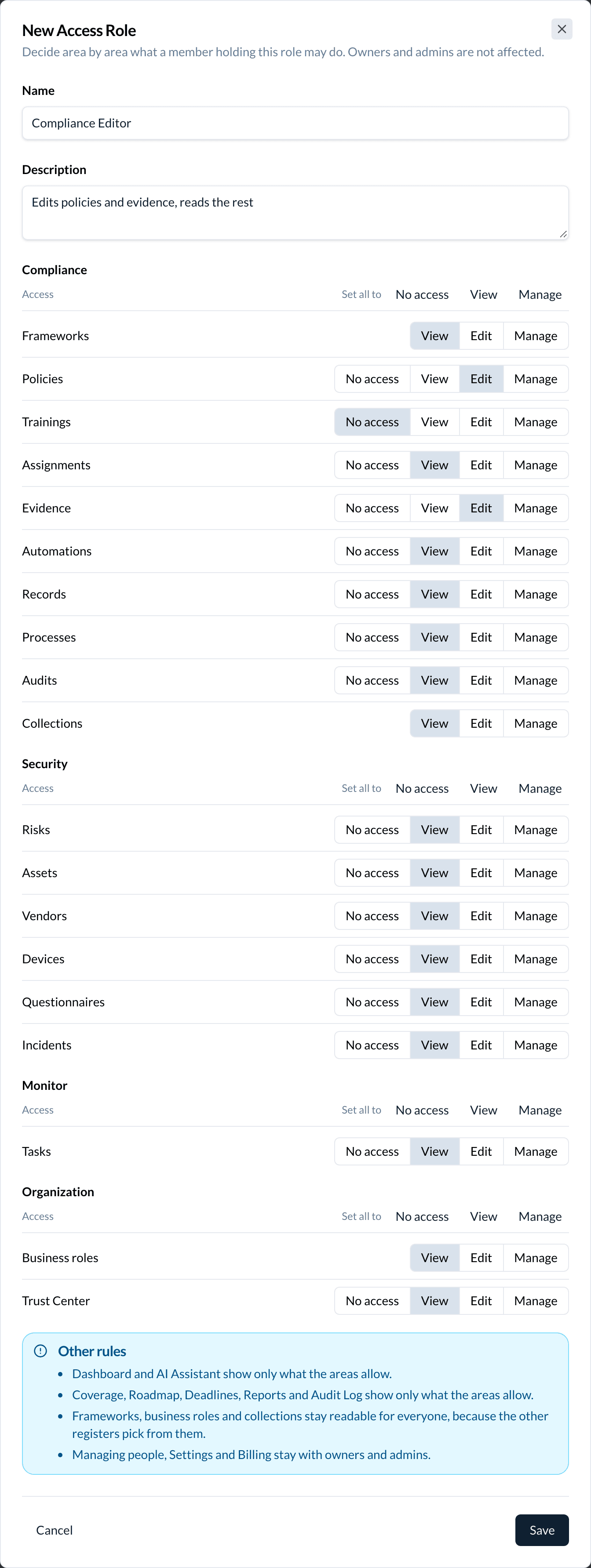
| Level | What it allows |
|---|---|
| No access | The area's pages and records are closed to the member. |
| View | Open and read the records. A member named as a record's approver can still approve it, as with the standard Member role. |
| Edit | View, create and change records. |
| Manage | Everything, including deleting records. |
Frameworks and controls, Business roles and Collections can't be set to No access. Every other register picks from them (an owner, a label, a control to map), so they stay readable for everyone.
An access role never grants billing, organization settings, tokens, single sign-on, people or access roles themselves. Those stay with owners and admins.
Give a member an access role
- In People, open the person and choose Edit.
- With Member as the Role, choose the access role under Access role.
- Choose Save.
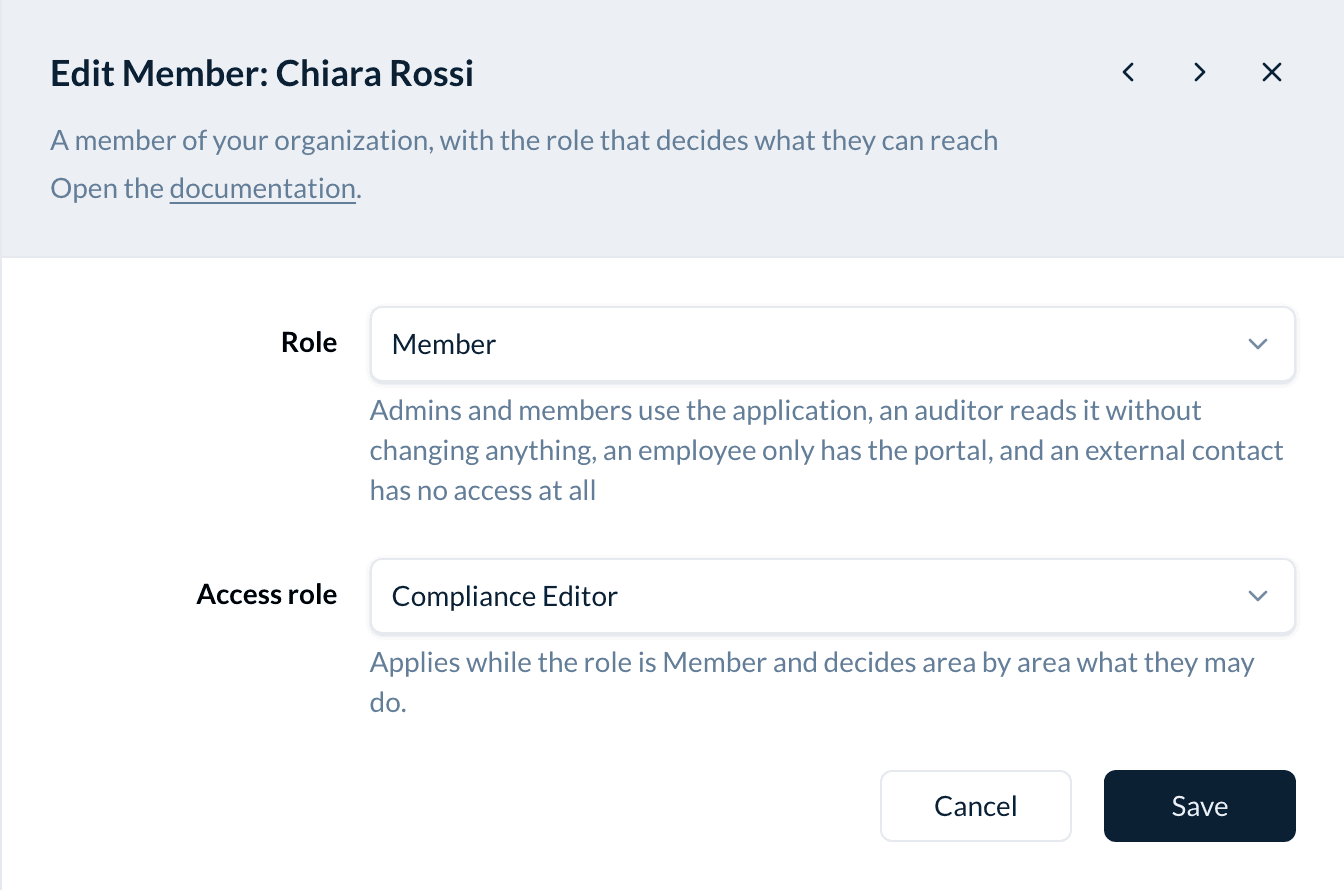
The change applies on the member's next request. Choosing a role other than Member here removes the access role. A person invited later starts with the standard Member access until you give them one.
The built-in roles can't be changed on the Access Roles page. To give someone another built-in role, use People.
Watch out: a role change made elsewhere (an ownership transfer, or your directory over SCIM) keeps the stored access role. If the person becomes a Member again, it applies again. Check Access role after such a change.
Check what the member sees
- Areas set to No access refuse their pages and leave the sidebar. Their records are left out of search, deadlines, the audit log, a colleague's overview, the management review inputs and the AI assistant's answers, including questionnaire autofill.
- Where a record of a closed area is linked to something the member can open, for example a policy mapped to a control, its name still shows, but it can't be opened.
- The deadline calendar feed is for the whole organization, so a member with an access role can't subscribe to it. A feed address copied before the role was given keeps working until you delete the subscription and create a new one.
- Mentioning someone in a comment works only if they can view the record the comment is on.
Change or delete an access role
To change a role's name or levels, choose Edit on its row. Every member holding it gets the new levels.
Delete works only once nobody holds the role. Give its members another access role first, so nobody falls back to the wider Member access by accident.
Every change is in the audit log, with the levels before and after.
How the areas map to the sidebar
The areas follow the sidebar: the same sections and names, in the same order. Some cover more than their sidebar entry:
| Area | Also covers |
|---|---|
| Frameworks | Controls and coverage |
| Audits | Findings and the audit programme |
| Automations | Integrations and checks |
Two levels carry more than their name says: Edit on Devices includes locking a device remotely, and Edit on Automations includes connecting integrations such as GitHub or Jira.
Sidebar entries without an area of their own show only what the areas allow: Dashboard, AI Assistant, Coverage, Roadmap, Deadlines, Reports and Audit Log.
How is this guide?